
The user interface
The sidebar serves as the main control panel for Clean Page AI. From here you can access any saved chats and configure AI behavior. Below is a section-by-section overview.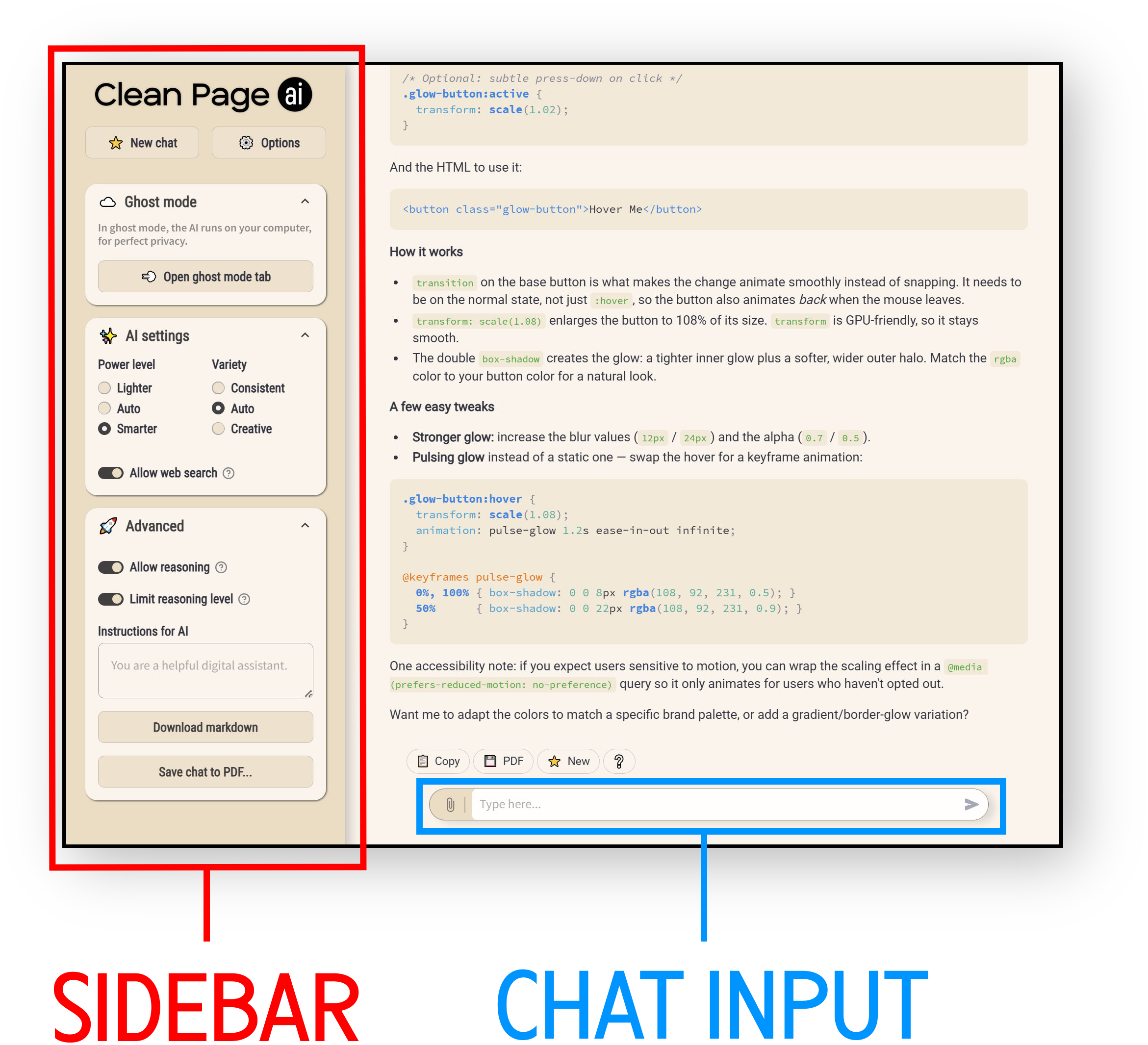
The Sidebar
The sidebar serves as the main control panel for Clean Page AI. From here you can access any saved chats and configure AI behavior. Below is a section-by-section overview.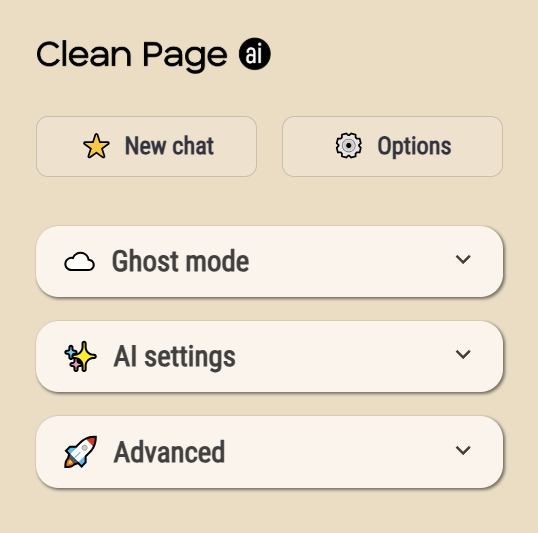
Sidebar
At the top of the sidebar, the ⭐ New chat button starts a fresh conversation at any time.
The ⚙️ Options button opens the options menu (more on that below).
Sections
There are 4 panels on the sidebar:
- Saved chats — conversations you have explicitly saved (chats are never stored otherwise).
- Ghost mode — this is a special mode that runs AI on your computer instead of in the cloud, for perfect privacy. The downside is that the AI is not as smart.
- AI Settings — basic settings
- Advanced — advanced settings
Click to open them up.
Saved chats
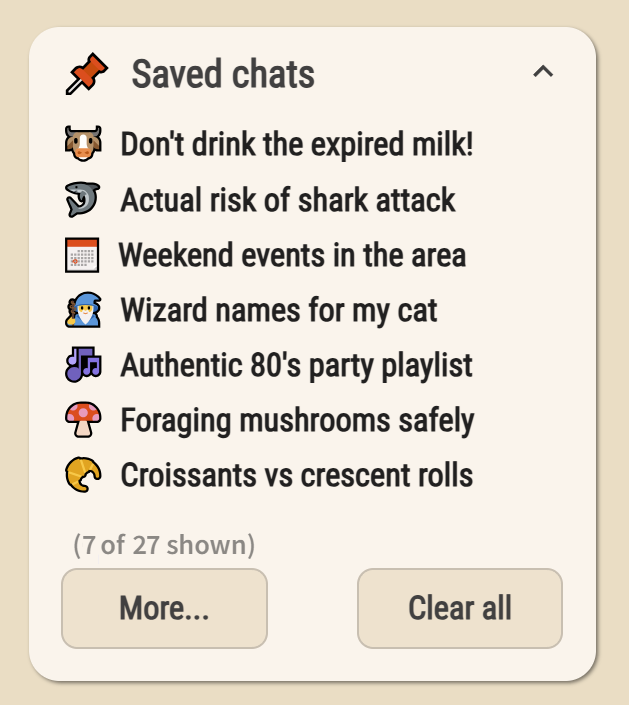
The Saved chats panel displays saved conversations. By default, Clean Page AI saves no chat information at all. But you can save any chat using the Save button at the bottom (more on that below). The chat will then appear on the sidebar, and stay there until you delete it. During that time, the chat log will be stored on our servers. Once deleted, it will be gone forever.
- More… — loads more chat transcripts.
- Clear all — permanently deletes your entire chat history. This action cannot be undone!
Click any conversation title to reopen it and continue where you left off.
Ghost mode
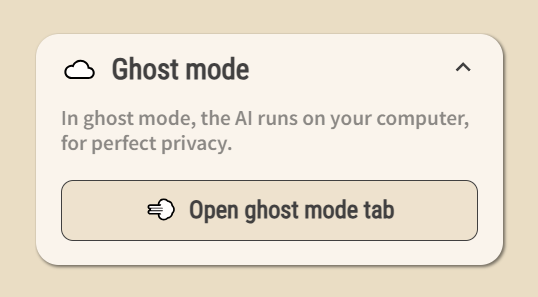
For perfect privacy, open a Ghost Mode tab. This means the AI runs entirely inside your web browser, with no remote servers involved. Your conversation never leaves your device. It’s a self-contained, in-browser intelligence that does all its thinking right there on your computer. It even works offline. Details about the Ghost Mode interface are below.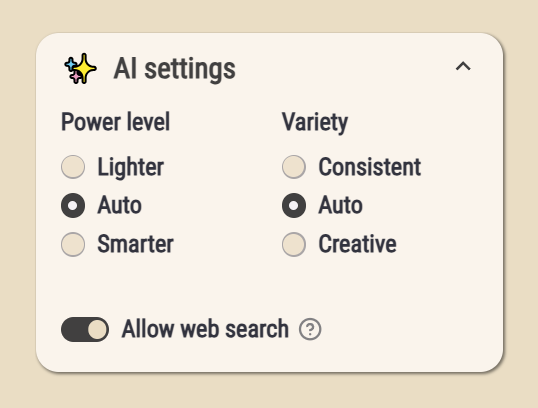
AI Settings
The AI Settings panel provides two settings that let you control how the AI responds.
Quality — controls the trade-off between speed and depth:
- Faster — prefer a lightweight model for quicker responses.
- Auto (default) — allows the system to select the most appropriate model for each message.
- Smarter — prefer a most capable model, which may take slightly longer to respond, and use more credits.
Variety — controls how predictable or exploratory the AI's responses are:
- Consistent — produces more deterministic output that stays close to the most likely answer.
- Auto (default) — provides a balanced mix of consistency and variation.
- Creative — generates more varied and imaginative responses.
Allow web search — This option allows the AI to use the web for current events or to look up more information. This can make responses slower, but more accurate. Clean Page only activates web search when needed.
Advanced
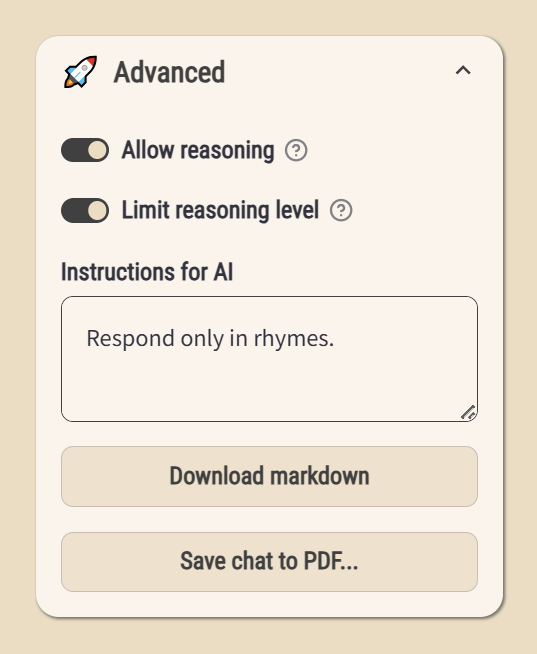
Allow reasoning — allow the AI to "think" for a while to provide a better response. This uses a lot more energy! Only enable reasoning when the extra power is needed. Clean Page will set the AI's reasoning level to match the difficulty of the query.
Limit reasoning level — prevents thinking from taking too long, especially for easier queries.
Instructions for AI — a text field where you can provide system-level instructions that apply to every conversation. For example, you might enter "Always reply in British English" or "You are a helpful coding tutor." Whatever you write here is given to the AI for every chat.
Download markdown — download the current conversation as "markdown", which is text with a special notation for formatting."
Save chat to PDF… — exports the current conversation to a PDF file, useful for sharing, printing, or archiving.
The Options menu
Press the ⚙️ Options button at the top of the sidebar to open the Options menu.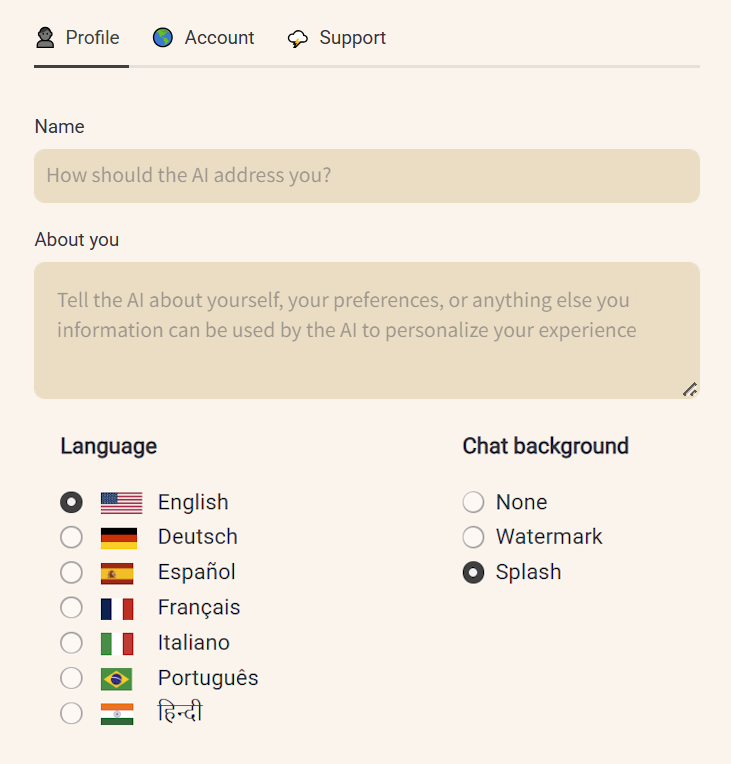
Profile
Name — (optional) your preferred way to be addressed
About you — (optional) any background information the AI might find useful to customize its response.
Language — sets the language for the user interface and all menus. This also changes the default language for the AI response, but it will generally try to reply in the same language as the question.
Chat background — what to show on the new chat screen.
Account
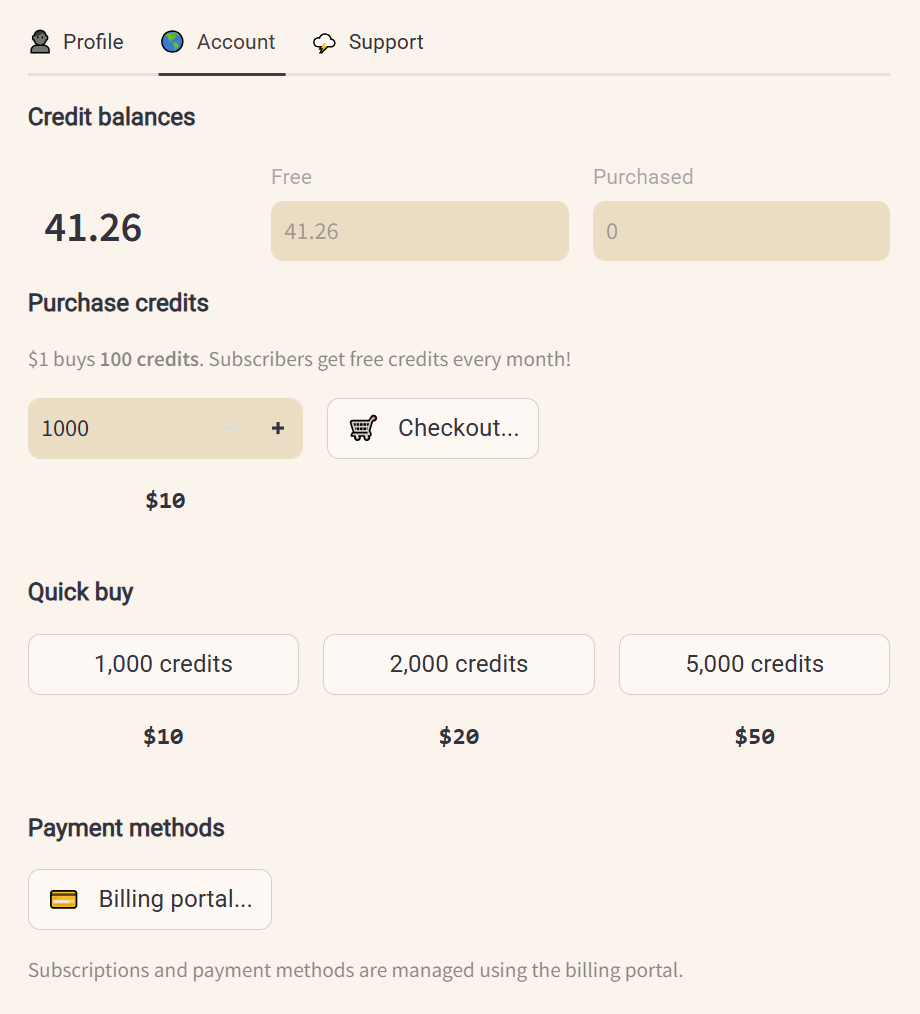
Credit balances — displays your remaining credits, divided into two separate pools:
- Subscription — credits included with your current plan, replenished at the start of each billing cycle.
- Purchased — additional credits bought separately. These do not expire.
Purchase credits — allows you to purchase additional credits in any quantity, using the normal checkout flow.
Quick buy — subscribers have convenient one-click buttons to purchase additional credits in fixed bundles, without going through the checkout again.
Payment methods — opens an external billing portal where you can manage your subscription plan, update payment methods, and review invoices. Clicking this button brings up a link to the payment portal. Click the link to proceed.
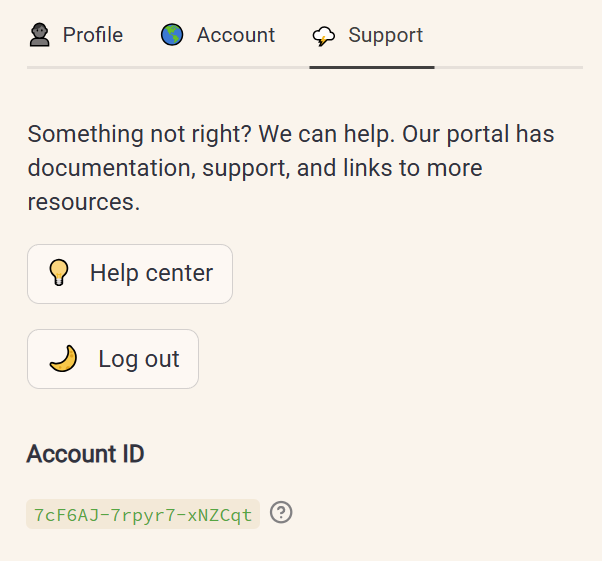
Support
Help center — opens the documentation and support portal, which includes FAQs, usage guides, and contact options for the support team.
Log out — signs you out of your current session.
At the bottom of the menu you will find an account ID (e.g., the one in the picture is 7cF6AJ-7rpyr7-xNZCqt). If you need to report an issue or contact support, please include this ID so the team can locate your account.
Chat buttons

At the bottom of every chat is a set of buttons. Some may not appear in every situation. These buttons let you manage the chat.
Copy — copy the entire chat to the clipboard as markdown.
Save — save this chat to the sidebar. It will stay there until deleted.
PDF — download the chat transcript as a PDF document.
New — clear this chat and start a new one.
Subscriptions
Billing and Payments
You can manage your subscription, update payment methods, and review invoices through the billing portal, accessible from the Account section of the options menu.Credits
Subscription Credits
Paid plans include a fresh allocation of credits at the start of each billing cycle. Subscription credits are always consumed first. Unused subscription credits do not roll over — they reset when your next billing cycle begins.Purchased Credits
If you need more credits than your plan provides, additional credits can be purchased at any time in bundles of 10, 20, or 50 from the Buy more credits option in the Account section of the sidebar.Purchased credits never expire and are maintained in a separate balance. They are only drawn upon once your subscription credits for the current billing cycle have been fully consumed.
Checking Your Balance
Your current credit balances — subscription and purchased — are displayed in the Account section of the options menu at any time. For a detailed breakdown of usage history and transaction records, visit the Billing portal.Support
